
Creating a professional vba data entry form is the best way to transform a standard spreadsheet into a fully automated data entry userform. This excel form data entry template is used to enter records via a custom interface and update an Excel database automatically. I have designed this vba userform with essential fields: Id, Name, Gender, Location, Email Address, Contact Number, and Remarks. Below is a detailed, step-by-step excel vba userform tutorial to help you build this project from scratch.

Key Steps to Build a Fully Automated Data Entry Userform
Here is the logic flow to develop a robust vba userform data entry in excel. We use multiple procedures to ensure the data is validated and stored correctly in your database.
- Step 1: Variable Declaration: Declaring the objects and variables required for our data entry code.
- Step 2: Application Optimization: Temporarily turning off screen updates to stop flickering.
- Step 3: UI Construction: Inserting the vba userform and placing controls from the toolbox.
- Step 4: Data Validation Logic: Ensuring the vba data entry form receives correctly formatted information.
- Step 5: Dynamic Row Finding: Using a function to find the next available row in the data entry template in excel.
- Step 6: Reset Procedure: Clearing the excel vba userform fields for the next entry.
- Step 7: Database Update: The core procedure to add data to the Worksheet.
- Step 8: Form Unloading: Cleanly exiting the Userform window.
- Step 9: Environment Restoration: Resetting Excel’s application events at the end of the process.
Design: Excel VBA Userform Control Properties
When working on userform design, setting properties correctly is vital. Professional excel vba userform examples often utilize the msforms userform keypreview property excel (set to True) to handle keyboard shortcuts and the vba userform whatsthisbutton property for user help icons.
| Control | Property | Value |
|---|---|---|
| Userform | Name | frmData |
| Caption | UserData | |
| Label | Name | lblId / lblName / lblGender / etc. |
| OptionButton | Name | obMale / obFMale (Group: g1) |
| TextBox | Name | txtId (Enabled: False) / txtName / etc. |
| TextBox | MultiLine | True (for txtRemarks) |
| CommandButton | Name | cmdAdd / cmdClear / cmdCancel |
Code Explanation and Technical Logic:
Step 1: Declaring Variables for the VBA Data Entry Form
'Variable declaration
Dim txtId, txtName, GenderValue, txtLocation, txtCNum, txtEAddr, txtRemarks
Dim iCnt As Integer
Step 2: Optimization with ScreenUpdating
With Application
    .ScreenUpdating = False
    .EnableEvents = False
End With
Step 3: Create Userform Interface
Create the excel vba userform by adding controls from the Toolbox. In this project, we use seven Labels, two Option buttons, six Textboxes, and three CommandButtons.
Step 4: Implementing Data Validation Logic
'Variable Declaration
Dim BlnVal As Boolean

 ' Check all the data(except remarks field) has entered are not on the Userform
Sub Data_Validation()
     If txtName = "" Then
        MsgBox "Enter Name!", vbInformation, "Name"
        Exit Sub
     ElseIf frmData.obMale = False And frmData.obFMale = False Then
        MsgBox "Select Gender!", vbInformation, "Gender"
        Exit Sub
     ElseIf txtLocation = "" Then
        MsgBox "Enter Location!", vbInformation, "Location"
        Exit Sub
    ElseIf txtEAddr = "" Then
        MsgBox "Enter Address!", vbInformation, "Email Address"
        Exit Sub
    ElseIf txtCNum = "" Then
        MsgBox "Enter Contact Number!", vbInformation, "Contact Number"
        Exit Sub
    Else
        BlnVal = 1
    End If
End Sub
Step 5: Create function to find lastrow.
'In this example we are finding the last Row of specified Sheet
Function fn_LastRow(ByVal Sht As Worksheet)

    Dim lastRow As Long
    lastRow = Sht.Cells.SpecialCells(xlLastCell).Row
    lRow = Sht.Cells.SpecialCells(xlLastCell).Row
    Do While Application.CountA(Sht.Rows(lRow)) = 0 And lRow <> 1
        lRow = lRow - 1
    Loop
    fn_LastRow = lRow
End Function
Step 5.1: Create procedure to clear fields of Userform
'Clearing data fields of Userform
Private Sub cmdClear_Click()
    Application.ScreenUpdating = False
        txtId.Text = ""
        txtName.Text = ""
        obMale.Value = True
        txtLocation = ""
        txtEAddr = ""
        txtCNum = ""
        txtRemarks = ""
    Application.ScreenUpdating = True
End Sub
Step 5.2: Create procedure to update data to the Worksheet.
Sub cmdAdd_Click()
    On Error GoTo ErrOccured
    'Boolean Value
    BlnVal = 0

    'Data Validation
    Call Data_Validation

    'Check validation of all fields are completed are not
    If BlnVal = 0 Then Exit Sub

    'TurnOff screen updating
    With Application
        .ScreenUpdating = False
        .EnableEvents = False
    End With

    'Variable declaration
    Dim txtId, txtName, GenderValue, txtLocation, txtCNum, txtEAddr, txtRemarks
    Dim iCnt As Integer

    'find next available row to update data in the data worksheet
    iCnt = fn_LastRow(Sheets("Data")) + 1

    'Find Gender value
    If frmData.obMale = True Then
       GenderValue = "Male"
    Else
       GenderValue = "Female"
    End If

    'Update Userform data to the Data Worksheet
    With Sheets("Data")
        .Cells(iCnt, 1) = iCnt - 1
        .Cells(iCnt, 2) = frmData.txtName
        .Cells(iCnt, 3) = GenderValue
        .Cells(iCnt, 4) = frmData.txtLocation.Value
        .Cells(iCnt, 5) = frmData.txtEAddr
        .Cells(iCnt, 6) = frmData.txtCNum
        .Cells(iCnt, 7) = frmData.txtRemarks

        'Diplay headers on the first row of Data Worksheet
        If .Range("A1") = "" Then
            .Cells(1, 1) = "Id"
            .Cells(1, 2) = "Name"
            .Cells(1, 3) = "Gender"
            .Cells(1, 4) = "Location"
            .Cells(1, 5) = "Email Addres"
            .Cells(1, 6) = "Contact Number"
            .Cells(1, 7) = "Remarks"

            'Formatiing Data
            .Columns("A:G").Columns.AutoFit
            .Range("A1:G1").Font.Bold = True
            .Range("A1:G1").LineStyle = xlDash

        End If
    End With

    'Display next available Id number on the Userform
    'Variable declaration
    Dim IdVal As Integer

    'Finding last row in the Data Sheet
    IdVal = fn_LastRow(Sheets("Data"))

    'Update next available id on the Userform
    frmData.txtId = IdVal

ErrOccured:
    'TurnOn screen updating
    Application.ScreenUpdating = True
    Application.EnableEvents = True

End Sub
Step 6: Create procedure to unload Userform.
'Exit from the Userform
Private Sub cmdCancel_Click()
    Unload Me
End Sub
Step 7: Environment Cleanup
With Application
    .ScreenUpdating = True
    .EnableEvents = True
End With
Final VBA Module Code (Macro):
Please find the following procedures to create your vba data entry form. Double-click on the Userform (frmData) and add the following code to its code window.
'Variable Declaration
Dim BlnVal As Boolean

Private Sub Userform_Initialize()
    'Variable declaration
    Dim IdVal As Integer

    'Finding last row in the Data Sheet
    IdVal = fn_LastRow(Sheets("Data"))

    'Update next available id on the Userform
    frmData.txtId = IdVal
End Sub
Sub cmdAdd_Click()
    On Error GoTo ErrOccured
    'Boolean Value
    BlnVal = 0

    'Data Validation
    Call Data_Validation

    'Check validation of all fields are completed are not
    If BlnVal = 0 Then Exit Sub

    'TurnOff screen updating
    With Application
        .ScreenUpdating = False
        .EnableEvents = False
    End With

    'Variable declaration
    Dim txtId, txtName, GenderValue, txtLocation, txtCNum, txtEAddr, txtRemarks
    Dim iCnt As Integer

    'find next available row to update data in the data worksheet
    iCnt = fn_LastRow(Sheets("Data")) + 1

    'Find Gender value
    If frmData.obMale = True Then
       GenderValue = "Male"
    Else
       GenderValue = "Female"
    End If

    'Update Userform data to the Data Worksheet
    With Sheets("Data")
        .Cells(iCnt, 1) = iCnt - 1
        .Cells(iCnt, 2) = frmData.txtName
        .Cells(iCnt, 3) = GenderValue
        .Cells(iCnt, 4) = frmData.txtLocation.Value
        .Cells(iCnt, 5) = frmData.txtEAddr
        .Cells(iCnt, 6) = frmData.txtCNum
        .Cells(iCnt, 7) = frmData.txtRemarks


        'Diplay headers on the first row of Data Worksheet
        If .Range("A1") = "" Then
            .Cells(1, 1) = "Id"
            .Cells(1, 2) = "Name"
            .Cells(1, 3) = "Gender"
            .Cells(1, 4) = "Location"
            .Cells(1, 5) = "Email Addres"
            .Cells(1, 6) = "Contact Number"
            .Cells(1, 7) = "Remarks"

            'Formatiing Data
            .Columns("A:G").Columns.AutoFit
            .Range("A1:G1").Font.Bold = True
            .Range("A1:G1").LineStyle = xlDash

        End If
    End With
‘Display next available Id number on the Userform
'Variable declaration
    Dim IdVal As Integer

    'Finding last row in the Data Sheet
    IdVal = fn_LastRow(Sheets("Data"))

    'Update next available id on the Userform
    frmData.txtId = IdVal
ErrOccured:
    'TurnOn screen updating
    Application.ScreenUpdating = True
    Application .EnableEvents = True

End Sub

'In this example we are finding the last Row of specified Sheet
Function fn_LastRow(ByVal Sht As Worksheet)

    Dim lastRow As Long
    lastRow = Sht.Cells.SpecialCells(xlLastCell).Row
    lRow = Sht.Cells.SpecialCells(xlLastCell).Row
    Do While Application.CountA(Sht.Rows(lRow)) = 0 And lRow <> 1
        lRow = lRow - 1
    Loop
    fn_LastRow = lRow

End Function

'Exit from the Userform
Private Sub cmdCancel_Click()
    Unload Me
End Sub

' Check all the data(except remarks field) has entered are not on the Userform
Sub Data_Validation()
     If txtName = "" Then
        MsgBox "Enter Name!", vbInformation, "Name"
        Exit Sub
     ElseIf frmData.obMale = False And frmData.obFMale = False Then
        MsgBox "Select Gender!", vbInformation, "Gender"
        Exit Sub
     ElseIf txtLocation = "" Then
        MsgBox "Enter Location!", vbInformation, "Location"
        Exit Sub
    ElseIf txtEAddr = "" Then
        MsgBox "Enter Address!", vbInformation, "Email Address"
        Exit Sub
    ElseIf txtCNum = "" Then
        MsgBox "Enter Contact Number!", vbInformation, "Contact Number"
        Exit Sub
    Else
        BlnVal = 1
    End If
End Sub

'Clearing data fields of Userform
Private Sub cmdClear_Click()
    Application.ScreenUpdating = False
        txtId.Text = ""
        txtName.Text = ""
        obMale.Value = True
        txtLocation = ""
        txtEAddr = ""
        txtCNum = ""
        txtRemarks = ""
    Application.ScreenUpdating = True
End Sub
Insert a standard module and add the following code to link the form to a worksheet button.
‘Here is the code to Show Data Entry Userform
Sub Oval2_Click()
    frmData.Show
End Sub
‘To clear data columns data on Data Worksheet
Sub Clear_DataSheet()
    Sheets("Data").Columns("A:G").Clear
End Sub
Display Data Entry Userform on the WorkSheet:
Follow these steps to create a launch button for your excel userform data entry system:
- Place any shape by clicking on insert menu from illustrations group.
- Right click on the shape, select assign macro.
- Select the macro name (‘Oval2_Click’) from the available list and click on OK button.
- Now, go to the Developer tab.
- Design Mode should be turned off from the Controls group.
- Now, click on the shape to show userform vba excel on the worksheet.
Instructions to Execute the VBA Procedure:
You can download the excel vba data entry form template below or follow these steps to use the code in a new file:
- Open VBA Editor window or Press Alt+F11.
- Insert a new module from the Insert menu.
- Copy the above procedures and paste them into the newly created module.
- Hit F5 key to see the vba userform in action.
Final Outcome of the project:
Here is the sample screen shot of the entire project output for your reference.
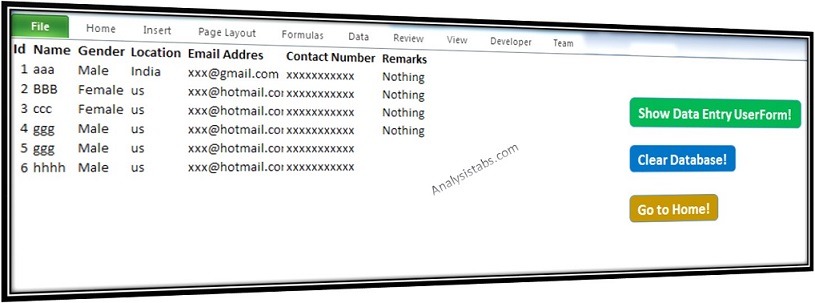
Data Entry Userform Outcome
Download the Data Entry Userform creator – Excel VBA Project:
Get the fully automated data entry userform in excel download below to explore the code yourself.

its good
Great works. Thanks
Hi
Just wanted to say a massive thank you for this. I managed to expand the form to include more rows and some combo boxes but I would have been unable to do it without your help.
Thanks so much.
Super….
The example file works fine, but I could not recreate a new file using the directions.
Had to create the “Data” sheet in the workbook, and name the “Home” sheet then my form would launch. Was getting an error when clicking on the Open User Form button, and it would not launch.
I have user form in sheet1. But i would like to insert data in sheet2. How to do this?
How to program “edit button” to have possibility of edition all items in table? F.e. after pushing ‘Edit’ we chose a ‘name’ and then all text boxes can be editable?
All seems working, but I’m stuck with adding the first data. When I click the “Add” button the data remains in the userform. I need to click the “Clear” button to add a new entry. On second entry when I click the “Add” button, automatically the data in userforms clears out. Could you please verify how to clear the data when adding it for the first time?
Thanks for so much!
Hi there,
Could you come up with something that will include this items…. for Data Entry
1. Employee Name
2. Title
3. Salary per hour
4. Address
5. Phone
6. Social Security #
7. Gender
8. Marital Status
9. Birth-date
10. Employed Date
Excellent !
Keep it Up
Thank-You so mach sir.
I have done everything write but it is showing Run time error 9
On debugging showing in frmData.Show
very good
Unfortunately, There Is No Date or Counting in Form
Hi! Thank you for your feedback.
To clarify, the Counting in this form is fully automated. The ID field uses the fn_LastRow logic to automatically calculate the next available serial number. This prevents manual entry errors and ensures your database stays organized.
Regarding the Date, while this specific template focuses on contact details, you can easily add an automatic ‘Date of Entry’ by adding this single line to the cmdAdd_Click procedure:
I hope this helps! If you’d like a version of this vba data entry form that includes a built-in calendar or live record counter, let me know and I can create a follow-up post.