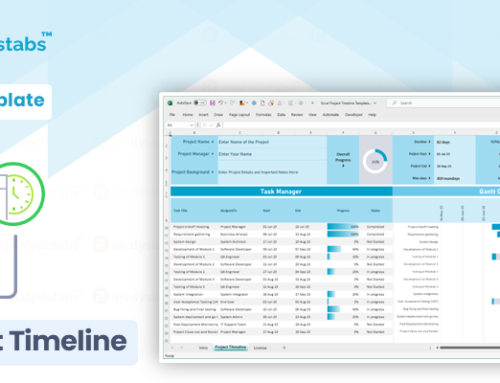
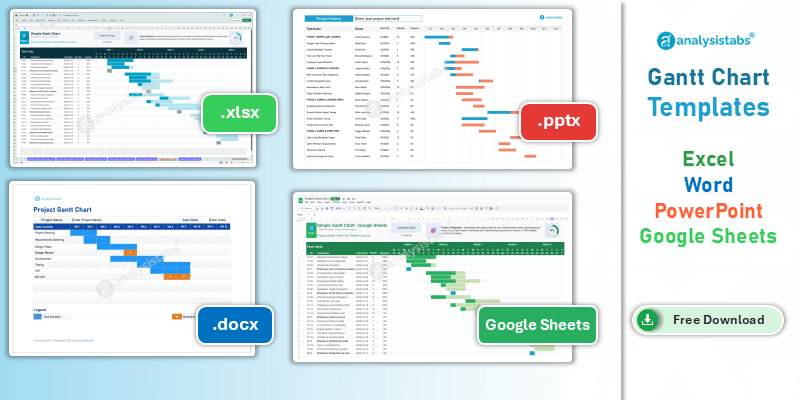
Plan, schedule, and track your project timelines with our free Gantt chart templates. Available for Microsoft Excel, Google Sheets, Word, PowerPoint, and Mac Keynote — every template automatically generates colour-coded horizontal bars as you enter task names, start dates, durations, and completion percentages.
Gantt charts are the most widely used tool in project management for visualising schedules, tracking progress, and communicating timelines to stakeholders. Whether you are managing a software release, a construction project, or a marketing campaign, a well-built Gantt chart turns a flat task list into a visual roadmap that everyone on the team can understand at a glance.
Download any of our templates below — no sign-up required — and start building your project schedule in minutes.
What is a Gantt chart?
A Gantt chart is a graphical representation of a project schedule where tasks are listed vertically and time runs horizontally. Each task is shown as a horizontal bar whose length represents its duration, and the bar’s position on the timeline shows when the task starts and ends. Stacked bars can represent completed work, work in progress, and pending work — giving managers an instant visual summary of project health.
The concept was first developed by Karol Adamiecki, a Polish engineer, in the early 1900s. However, it was named after Henry Gantt, an American project management pioneer who popularised and refined the chart format. Today, Gantt charts are a staple in every project manager’s toolkit — used across industries from IT and construction to marketing and event planning.
What is a Gantt chart used for?
Gantt charts serve as the central scheduling tool for project management. They are used to visually represent project schedules and project timelines, making complex plans easy to understand. Project managers rely on them to display start dates, end dates, and deadlines for every activity, while also showing task dependencies and the relationships between activities.
They provide a clear view of task progress and completion percentages, help identify the critical path through a project, support resource allocation by showing who is working on what, and serve as an effective communication tool for stakeholder presentations and team meetings. Advanced Gantt charts include scroll bars for navigating large projects, milestone markers for key deliverables, and phase separators that group related tasks together.
Gantt chart example
Here is an example of a Gantt chart that shows the progress of a project by phase. Each stacked bar represents a task — the green portion shows completed work, the blue shows work in progress, and the grey shows pending work. You can clearly see the start date, due date, and percentage of completion for each task.
This format also supports adding additional information such as the cost to complete each phase or milestone, resource assignments, and dependency arrows between related tasks.
Advantages of Gantt charts
Gantt charts offer significant benefits for project managers and teams:
- Represent project schedules and activities visually on a single graph
- Display tasks, sub-tasks, milestones, and project phases with clear date visibility
- View plans by day, week, month, quarter, or year
- Help with effective team management — see team members and their assigned tasks side by side
- Support efficient time management with start dates, end dates, and durations
- Group sub-tasks under main tasks for easy organisation
- Track project status and completion percentages through colour-coded stacked bars
- Identify tasks in progress and pending work at a glance
- Help managers coordinate with teams and present in meetings
Disadvantages of Gantt charts
Despite their strengths, Gantt charts have some limitations:
- Require significant effort to create and maintain manually
- Updating a chart can be time-consuming for large projects
- Not all tasks are visible in a single view — scrolling is often required
- Stacked bars represent elapsed time, not actual hours of effort
- Realigning tasks between sections is not always straightforward
- Calculating aggregate metrics can be difficult without automation
However, modern Excel templates with built-in formulas and conditional formatting — like the ones available on this page — largely eliminate these manual pain points. Despite its limitations, the Gantt chart remains one of the most powerful tools for managing projects, teams, and timelines effectively.
Gantt chart vs network diagram
Gantt charts and network diagrams are both essential project management tools, but they serve different purposes. A Gantt chart is a stacked bar chart that represents the project schedule in a timeline view — it focuses on tasks, time management, and detailed progress tracking. A network diagram is a flow chart that represents the sequential workflow of project activities — it focuses on milestones, dependencies, and the logical order of work.
| Gantt Chart | Network Diagram |
|---|---|
| Pictorial representation of project schedules | Pictorial representation of project workflow |
| Focus on tasks and time management | Focus on milestones and sequential order |
| In-depth plan to understand project tasks | High-level plan to understand project workflow |
| Exact timelines defined (e.g. 1 Jan to 25 Jul for Task A) | Estimated time frames (e.g. 4 days, 2 weeks for Milestone A) |
| Effective for resource allocation | Not designed for resource allocation |
| Captures project progress and % completion | Cannot capture progress percentages |
| Project status updated (New, In Progress, Completed, etc.) | Cannot update project status |
| Supports task descriptions and remarks | Cannot enter remarks or descriptions |
| Easy to modify and edit information | Difficult to change information |
| Built using stacked bar charts | Built using process flow chart diagrams |
In practice, many project managers use both tools together — a network diagram during the planning phase to map out the logical flow and identify the critical path, and a Gantt chart during execution to track progress against the schedule.
How to create a Gantt chart
There are two main approaches to creating a Gantt chart in Excel or Google Sheets:
Using shapes (manual approach): Use rectangle shape objects to manually draw task bars on a timeline grid. This gives you full visual control but requires manual adjustment whenever dates change.
Using a stacked bar chart (recommended): Set up your task data with start dates, durations, and progress percentages, then insert a stacked bar chart that automatically generates the Gantt timeline. This is the method used in all of our downloadable templates — the bars update automatically as you enter or change data. For a complete project planning solution that includes Gantt visualisation, see our free project plan template.
Creating a Gantt chart in Google Sheets
Our Google Sheets Gantt chart template lets you create and share project schedules online for free. Click the template link below to make a copy directly in your Google Drive.
To build one from scratch in Google Sheets, follow these steps:
Step 1 — Prepare the data:
- Open a blank Google Sheets spreadsheet
- Create columns for Task Name, Start Date, End Date, and Progress
- Add a calculated column for Start Number using:
=VALUE(StartDate - MIN(StartDateRange)) - Add a column for Total Days:
=EndDate - StartDate + 1 - Add Days Completed:
=TotalDays * Progress - Add Days Pending:
=TotalDays - DaysCompleted
Step 2 — Create the chart:
- Select the Task Name and Start Number columns and insert a chart
- Change the chart type to Stacked Bar Chart
- Add the Days Completed and Days Pending columns as additional series
- Set the Start Number series colour to light grey (this creates the offset)
- Set Days Completed to green and Days Pending to red
- Adjust the chart position beside your data table
Download free Gantt chart templates
All templates below are free to download and use for personal and commercial projects. No sign-up required. For more free templates, browse our complete project management templates library.
Gantt Chart — Excel Format (.xlsx)
Works with Excel 2007, 2010, 2013, 2016, 2019, 2021, and Microsoft 365 on Windows and Mac.
Gantt Chart — Google Sheets
Click the link to make a copy directly in your Google Drive. Free to use and share with your team.
Gantt Chart — Word Format (.docx)
Works with MS Word 2007 and later on Windows and Mac.
Gantt Chart — PowerPoint Format (.pptx)
Works with MS PowerPoint 2007 and later on Windows and Mac.
Gantt Chart — Mac Keynote Format
For macOS users who prefer Apple’s presentation software.
Need advanced Gantt charts?
Our free templates cover most project scheduling needs. But if you need automated task dependencies, critical path highlighting, resource heatmaps, multi-project portfolio views, and executive-ready dashboards, explore our premium project management templates:
- Ultimate Excel PM Template ($69) — Advanced Gantt chart with automated scheduling, resource tracking, and project dashboard
- 120+ PM Templates Pack ($299) — Complete project management toolkit with 50+ Excel, 50+ PowerPoint, and 25+ Word templates
Frequently asked questions
What is a Gantt chart?
A Gantt chart is a visual project management tool that displays tasks as horizontal bars along a timeline. The length of each bar represents the task’s duration, and the position shows when it starts and ends. Gantt charts help project managers plan schedules, track progress, and communicate timelines to stakeholders.
Who invented the Gantt chart?
The concept was first developed by Karol Adamiecki, a Polish engineer, in the early 1900s. It was later named after Henry Gantt, an American project management professional who popularised the chart format for industrial production scheduling.
What is the difference between a Gantt chart and a network diagram?
A Gantt chart uses horizontal bars to show task schedules and progress over time — it focuses on when things happen. A network diagram uses a flow chart format to show the sequential relationships and dependencies between tasks — it focuses on what order things happen. Project managers often use both tools together.
Can I create a Gantt chart in Google Sheets for free?
Yes. You can use our free Google Sheets Gantt chart template by clicking the download link on this page. It will create a copy in your Google Drive that you can customise with your own project data. Alternatively, you can build one from scratch using a stacked bar chart.
What are the advantages of using a Gantt chart?
Gantt charts make project schedules easy to visualise, help teams understand deadlines and time frames at a glance, support resource allocation, track task completion percentages, and serve as effective communication tools for meetings and stakeholder presentations.
What are the disadvantages of a Gantt chart?
Gantt charts can be time-consuming to create and update manually, may require scrolling to see all tasks in large projects, and represent elapsed time rather than actual effort hours. However, using automated Excel templates with built-in formulas largely solves these issues.