
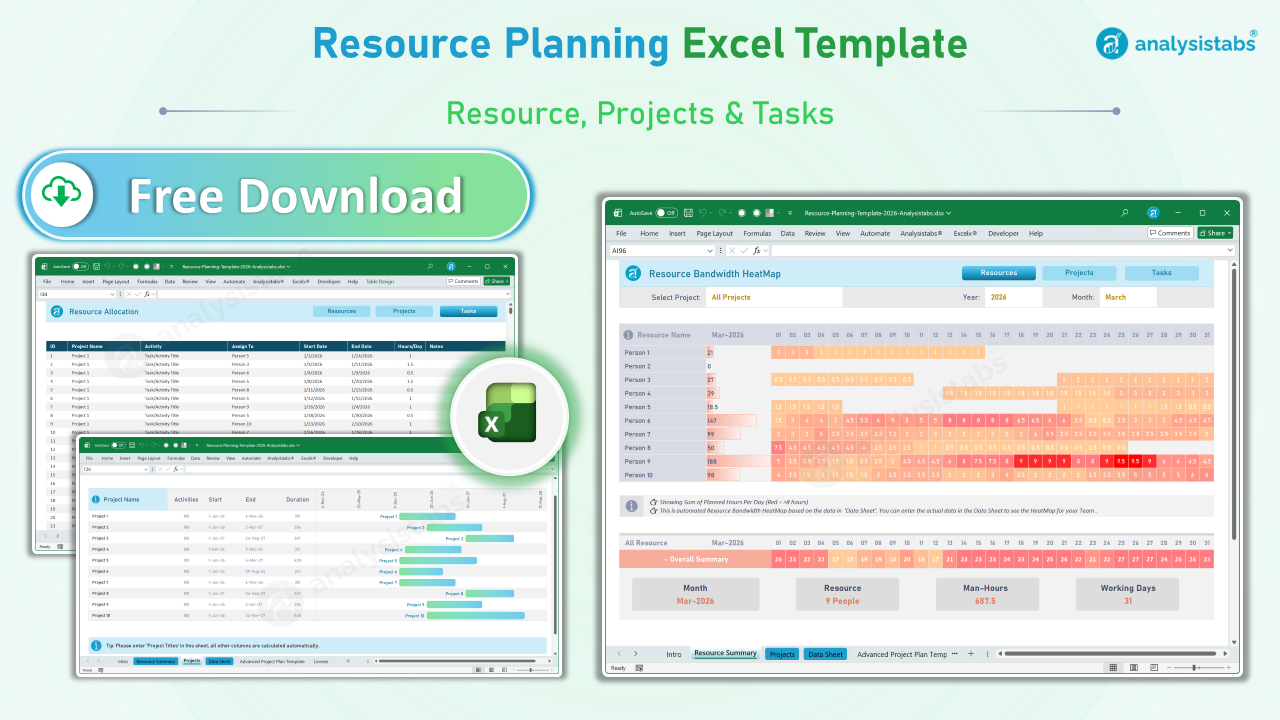
Resource Planning Template Excel helps to plan resource capacity planning, utilization and allocation. You can Track and to monitor the bandwidth of the team and manage your resource more effectively. A Project Resource Template can be very helpful to simplify and schedule your Project Resource. Resource allocation template in Microsoft Excel is created for resource tracking. You can download and use this free resource planning spreadsheet template for capacity planning.
Resource Planning Template Excel
You can download the Excel Resource Planning Template and enter your data in the Data Sheet. This Resource Allocation Template Excel Microsoft Spreadsheet is easy to use and helps you manage your team resources effectively. Our resource utilization template excel is one of the most useful resource planning tools excel for professional resource planning in Excel. You can now go to the Resource Summary tab to see the Resource Bandwidth by each month, year, or specific project.
- Download the Project Resource Planning Template in Excel Format.
- Click the “Resources” button on the Intro sheet to view the automated HeatMap report.
- Click the “Tasks” button to enter new records and assign activities in the Data Sheet.
- You can change the default format of the template using the built-in tools in Excel.
- This template works on Excel 2007, 2010, 2013, 2016, and is optimized for Excel 365, 2024, and 2021.
- These templates are also compatible with Mac using Office 2011, 2016, or modern Microsoft 365 versions.
Fields in Project Resource Planning Template Data Sheet
We have captured the minimum required fields in the Resource Data Sheet to ensure your planning is both fast and accurate. You can easily add more dimensions or columns if your project requires additional tracking.
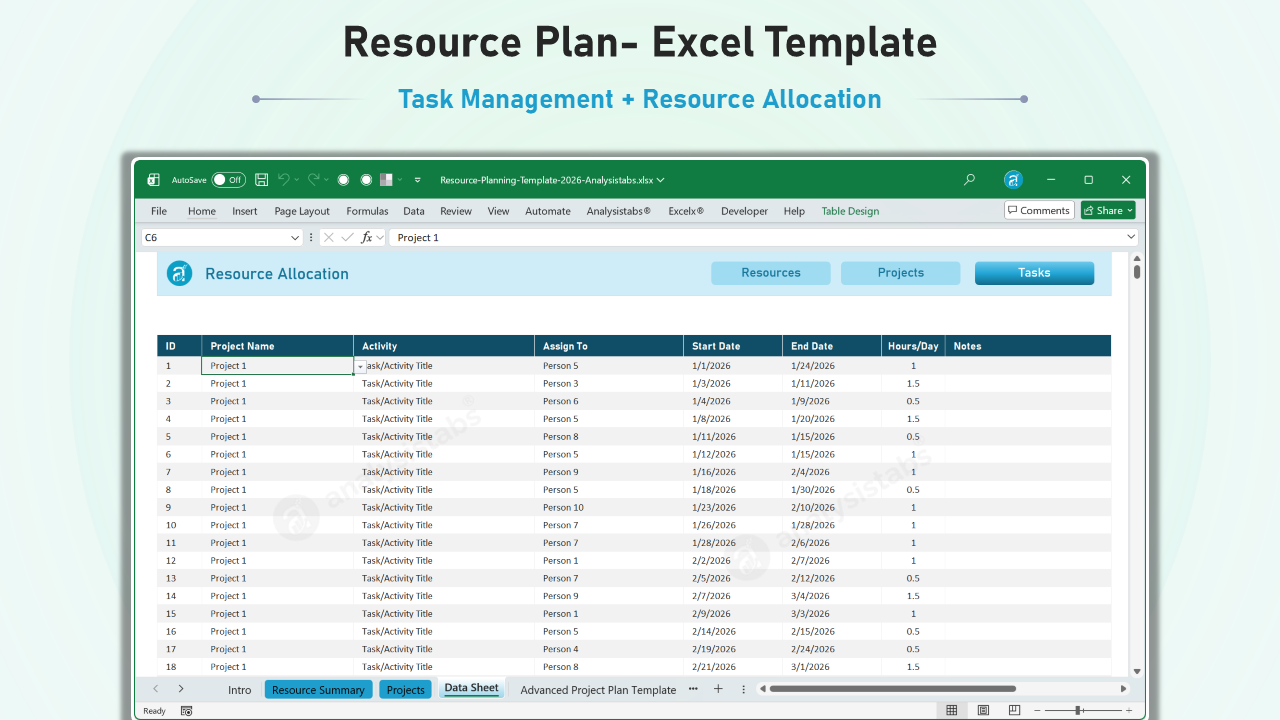
- ID: Unique serial number for every resource activity record.
- Project Name: The specific project name to which the task and resource are currently allocated.
- Activity: A clear description or title of the specific task assigned to the resource.
- Assign To: The name of the specific team member or resource assigned to the task.
- Start Date: The scheduled date to begin working on the assigned activity.
- End Date: The scheduled due date to complete the assigned activity.
- Hours/Day: The specific number of man-hours required per day to complete the activity.
- Notes: Additional details, task status, or specific instructions related to the resource assignment.
Project Resource Planning Template HeatMap Report
The automated HeatMap in the Resource Summary sheet helps you understand the bandwidth used and available for every member of your team. You can select the month and year from the dropdown list to automatically populate the sum of hours by person for each day.
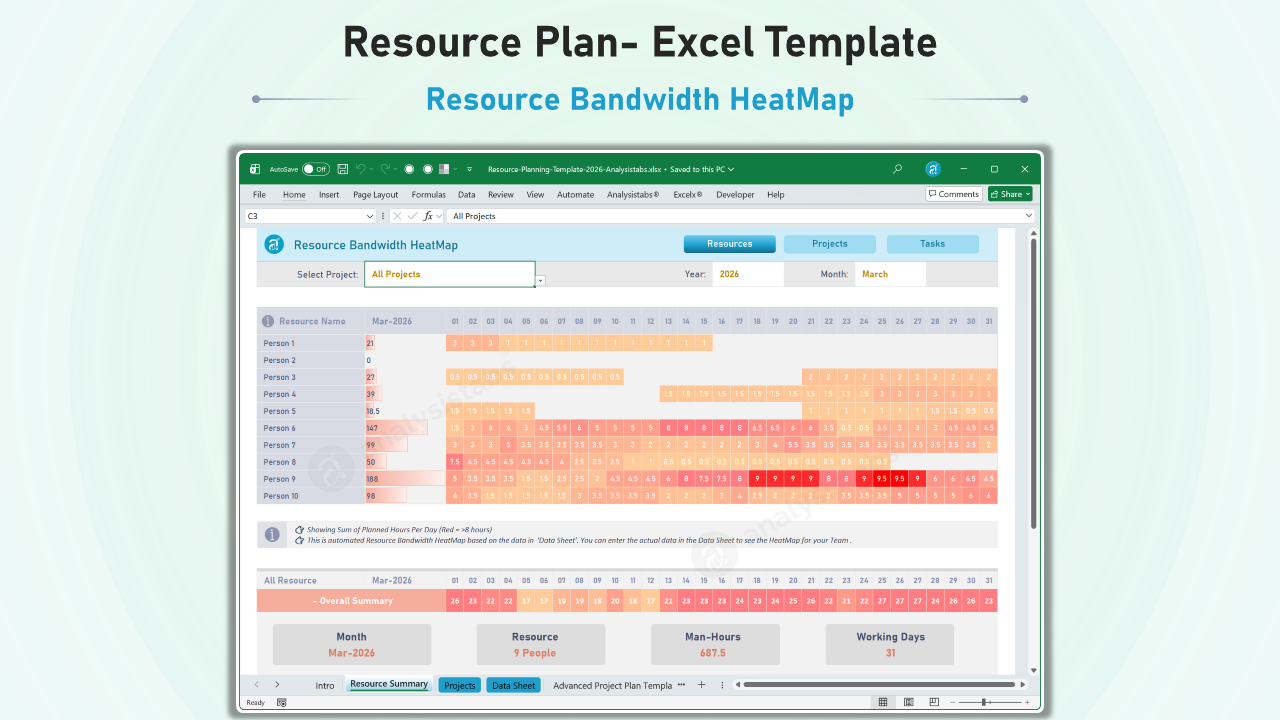
- Resource Name Sidebar: A quick list showing the names of all your team members.
- Month & Year Data Bars: Visual charts representing the overall bandwidth utilization for the entire team.
- White Cells: Indicates dates where no hours are allocated, meaning the resource is completely free.
- Light Orange/Pink: Indicates fewer hours are utilized, showing available capacity.
- Dark Pink/Red: Highlights dates where more hours are utilized, signaling high bandwidth usage.
Automated Project Summary and Gantt Timeline Report
The Project Summary provides an automated overview of all active initiatives, pulling data directly from your task allocations to generate a visual timeline. This helps you track project health without any manual formatting.
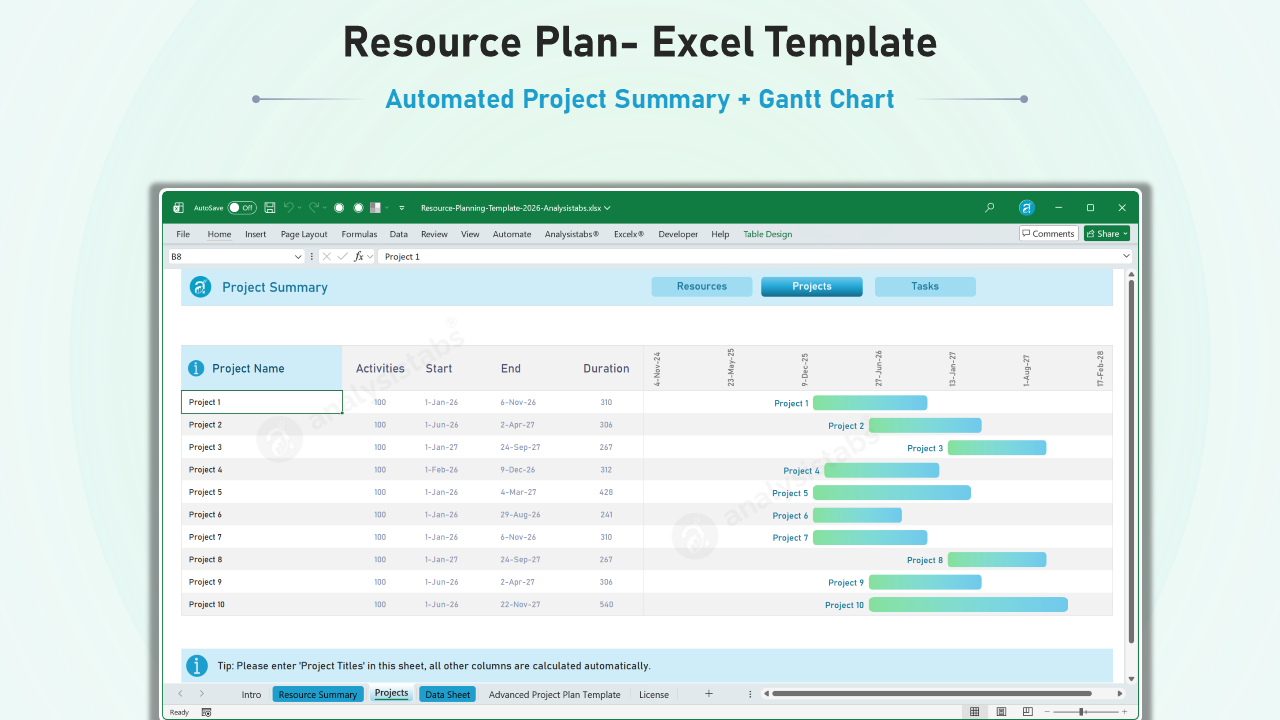
- Project Title Tracking: Simply enter your project names to see them reflected in the master list.
- Auto-Calculated Durations: The template automatically determines project length based on the earliest start and latest end dates.
- Activity Count: View the total number of tasks or activities linked to each specific project.
- Visual Gantt Timeline: Dynamic gradient bars show the project’s position on the calendar, helping you spot overlaps at a glance.
Resource Planning Template Excel – 2026 Free Edition
Efficiently manage your team’s capacity, utilization, and project bandwidth with our latest professional-grade tracker. Built for Project Managers who need clear, visual insights into team availability.
What’s New in the 2026 Update
- One-Click Navigation: New “App-like” buttons allow you to jump between Resources, Projects, and Tasks instantly.
- Enhanced HeatMap: Optimized conditional formatting for clearer bandwidth visualization and over-allocation alerts.
- Drill-down Filters: Dynamically filter the Resource Heatmap by Project, Year, and Month.
- Modern Interface: Clean, flat design optimized for Excel 365, 2024, and 2021.
Download Free Project Resource Planning Excel Template
Here is the Excel Template for Planning the Project Resource. You can download and make any changes if required to suit you needs.
Version 2026.1 | Compatible with Windows & Mac
Trusted by 100,000+ professionals worldwide since 2012. Built by PNRao.
How to Create a Resource Plan in Excel
Follow the below steps to create a professional resource plan using our 2026 updated Excel template:
- Download the Template: Start by downloading the 2026 Free Resource Plan Excel Template to your computer.
- Define Your Team: Go to the Resource Summary sheet and enter the names of up to 10 team members.
- List Your Projects: Use the Projects sheet to enter your Project Titles; the Gantt chart and dates will calculate automatically.
- Assign Tasks: Navigate to the Data Sheet to enter specific activities and assign them to a person using the dropdown menu
- Set Timelines: Enter the Start Date and End Date for each task to define the allocation period.
- Define Bandwidth: Enter the required man-hours in the Hours/Day field for each assignment.
- Analyze Results: Use the Resource Summary tab to view the automated HeatMap and identify over-allocated resources.
How to Use the Resource Planning Template (2026 Edition)
Follow these professional steps to set up your team’s capacity and project tracking using our updated 2026 Excel tool.
Step 1: Define Your Team Resources
Go to the Resource Summary sheet and enter the names of your team members.
- Capacity Note: This free version is optimized for small teams of up to 10 people.
- Resource Names: Simply list the individuals who will be assigned to project tasks.
Step 2: Set Up Your Project List
Navigate to the Projects sheet to list all active initiatives.
- Project Titles: Enter your project names in the first column.
- Automation: The template will automatically calculate the number of activities and project durations based on your task data.
Step 3: Allocate Tasks and Hours
The Data Sheet is your primary input area for assigning specific workloads.
- Assign Tasks: Link each activity to a specific project and a team member using the dropdown menus.
- Set Timelines: Enter the Start and End dates for every individual task.
- Define Bandwidth: Enter the specific Hours/Day required for the resource to complete that activity.
Step 4: Monitor the Resource HeatMap
Use the Resource Summary tab to visualize your team’s total bandwidth across the month.
- Drill-down Filters: Select a specific Project, Year, or Month to filter the HeatMap results instantly.
- Identify Spikes: Look for dark pink or red cells, which highlight dates where a resource is over-allocated.
- Check Capacity: White cells indicate days where a team member is completely free and available for new tasks.
Why Resource Planning is Critical for Project Success
Effective resource planning is the backbone of any successful project. Without a clear view of your team’s bandwidth, projects often face delays and burnout. Our 2026 template allows you to:
- Prevent Over-allocation: Identify team members with excessive workloads before they become a bottleneck.
- Improve Forecasting: Use historical data to predict future resource needs more accurately.
- Balance Workloads: Shift tasks to ensure everyone is working at optimal capacity.
- Increase Transparency: Provide stakeholders with a visual heatmap of project health.
Best Practices for Managing Resources in Excel
Following these best practices will ensure your resource plan remains accurate and actionable:
- Update Regularly: Ensure the Data Sheet reflects the latest changes in project scope.
- Use Realistic Estimates: Enter hours based on actual productive time, accounting for meetings and admin tasks.
- Account for Buffer Time: Leave margin in your plan to handle unexpected project changes.
- Monitor Spikes Daily: Regularly check for red alerts to address over-utilization immediately.
Frequently Asked Questions (FAQ)
- Can I add more than 10 team members? This free version is optimized for teams of 10. For larger teams, explore our premium unlimited records version at Analysistabs.org.
- Does this template exclude weekends? The free version tracks daily bandwidth. Advanced logic for global holidays and weekends is available in our premium portfolio tools.
- How do I unlock sheets to change formulas? The free version is protected to keep the HeatMap logic intact. Fully unlocked versions are available in our Premium Pack.
- Is this compatible with Mac? Yes, the template is fully compatible with Mac versions of Office 2011, 2016, and Microsoft 365.
More Useful Resource Planning Templates
Here are the more resource planning templates that enhance efficiency and optimize project management. These tools are designed to help you allocate and track resources effectively.
- Top 7 Free Resource Planning Templates by Float.com: List of Free Resource Planning Templates and downloadable sheets you can get and plan your project resource using Excel, Google Sheets.
- Microsoft Office Templates – Provides versatile resource planning templates specifically for use in Excel, ideal for those familiar with the Microsoft Office ecosystem. Visit Microsoft Project Tracking Templates
- ClickUp– Features customizable templates that are great for resource allocation and tracking, facilitating efficient project and team management. Get Your Free Resource Planning Templates for Excel and Google Sheets.
- ProjectManager.com – Provides easy-to-use templates for resource planning that help teams plan projects, allocate resources efficiently, and track progress. Visit ProjectManager.com and Get Free Resource Plan Template.
These Resource tracking templates can help enhance your resource planning processes, ensuring better project outcomes and team productivity.
Please Check Our Premium Project Management Templates
Hope this topic ‘Resource Planning Template Excel – Free Download‘ helps you to understand and create your own Plans using Excel and VBA. We are trying our best to help you in your resource management by creating this free templates.
Feel free to download the Free Resource Scheduling Template and other Excel Templates available in our blog. Please share your valuable feedback and thoughts with us about our Templates and other stuff in our blog and Forums.


Thank you very much. It is very helpful and an amazing template.
Good afternoon,
Having found your sheet via google, I downloaded a copy. It does say that data can be edited or modified to suit. It appears it cannot.
Please advise?
Kind regards,
Martin Sargeant
Hello,
Thanks for contacting us.
Yes, you can edit formulas and all the sheets to suit your needs. Could you please describe the issue more elaborately.
Thanks!
This is a good start to a template. Biggest feedback would be ability to remove or not count the weekends. Unless there’s a way and I didn’t notice
Hi,
I have downloaded the resource planning worksheet, but something seems not right. When values entered in the data sheet , hours are being spread for the weekends (Sat & Sun) . Rare case scenario and no organisation works 7 days a week.
can you suggest?
Regards,
Prashanth
Hi,
I have a work around for this, I have filtered out the weekends from the dates at the top of the report.
In cell D3 paste:
=IF(WEEKDAY(DATE(Report!$AA$1,Report!$T$1,1),2)<6,DATE(Report!$AA$1,Report!$T$1,1),IF(WEEKDAY(DATE(Report!$AA$1,Report!$T$1,1),2)=6,DATE(Report!$AA$1,Report!$T$1,1)+2,DATE(Report!$AA$1,Report!$T$1,1)+1))
In cell E3 paste:
=IFERROR(IF(MONTH(D3+1)=MONTH($D$3),IF(WEEKDAY(D3,2)=5,IF(MONTH(D3+3)=MONTH($D$3),D3+3,""),D3+1),""),"")
Then drag the formula in E3 across to AH3. It will show only weekdays across the top and the hours below are shown only for weekdays.
I haven't looked at public holidays yet, I think it will be too complicated.
David.
Hi,
Would like to make some changes in the Resource Planning Template. I am unable to insert a column in the data sheet. I would like to have an extra column
Hi PNRao,
Recently I downloaded the Resource planning Excel Template. Now I would like to make some changes in the template to suit my own requirements. I would like to add a new column in the data sheet. However, I am unable to do this. Can you help me out in this.
Regards
Srinivas
How do i add more resources to the Report sheet
I’m attempting to use the heatmap template, but I need weekends and holidays to be excluded. Can someone help me figure out how to do this? Please and thank you! :)
You can simply drag down the last record to add more resource the template.
You can use WeekDay Formula to avoid requred days. For example, the following formula will exclude Sunday and Saturday:
=IF(OR(WEEKDAY(Report!D$3)=1,WEEKDAY(Report!D$3)=7),",SUMIFS(Table1[[Hours/Day]:[Hours/Day]],Table1[[Resource Name]:[Resource Name]],Report!$B4,Table1[[Start Date]:[Start Date]],"<="&Report!D$3,Table1[[End Date]:[End Date]],">="&Report!D$3))Hi All
I have just downloaded the template but I am unable to change any details on the data sheet, can you advise how I can rectify this?
Thanks Laura
I cannot remove the weekdays based on the above tricks…can I getmore detailed help please?
Thanks
JM
how to edit the year in the template?
I need only 2019,2020,2021&2022
Can you please provide the password as the sheets are locked.
In what cell?
Is there a way to make the view months in the year rather than days in the month?
How can I change the view from Days in the Month to Months in a Year?
At Range D4
How can I change the heat map view from daily to monthly?
Hi,
You can calculate the Monthly Values based on the Daily Values. Or, you can change the SUMIFS criteria to aggregate by Month.
Thanks
The year range in heat map is only until 2022. How do I change it to 2023?
Updated! Please download the latest file.
Can you help to add 2026 and 2027 in the heat map?
Great question! We have just released the Updated 2026 Resource Planning Template which now includes full support for 2026 and 2027. We added a new Year and Month dropdown filter to the HeatMap so you can switch between years instantly without manually editing formulas. You can download the latest version directly from the link above!
Have loaded in all data but dashboard is blank, can you check it to see where I went wrong?
Please download the latest Resource Plan template.
Hi, downloaded the latest version. But the sheets are protected with password to edit existing data. Can you please provide the password to unlock the sheets.
Thxs,
Please check out premium Templates for UnLcoked Version of the Templates
Hi I’m interested in just using %FTE allocation to project phases.
We have found that e.g. the Data Analyst will need to spend 20% of their time in the Design phase, 40% in the Build phase and 10% in the Test phase.
I was proposing to swop the ‘activity’ for ‘project phase’ and then also swop ‘hours per day’ for ‘%’.
That’s not really working so I’m trying to use 0.1 day for 10%, 0.5 days for 50%.
I’ll check out your calcs to exclude weekends/BHs and to look at monthly stats but otherwise very useful thank you!
are we able to insert more rows on the Resource Summary and Projects tabs please?
Hi,
You can add more records in our Premium Templates, please check our Premium Resource Management Templates.
Thanks!